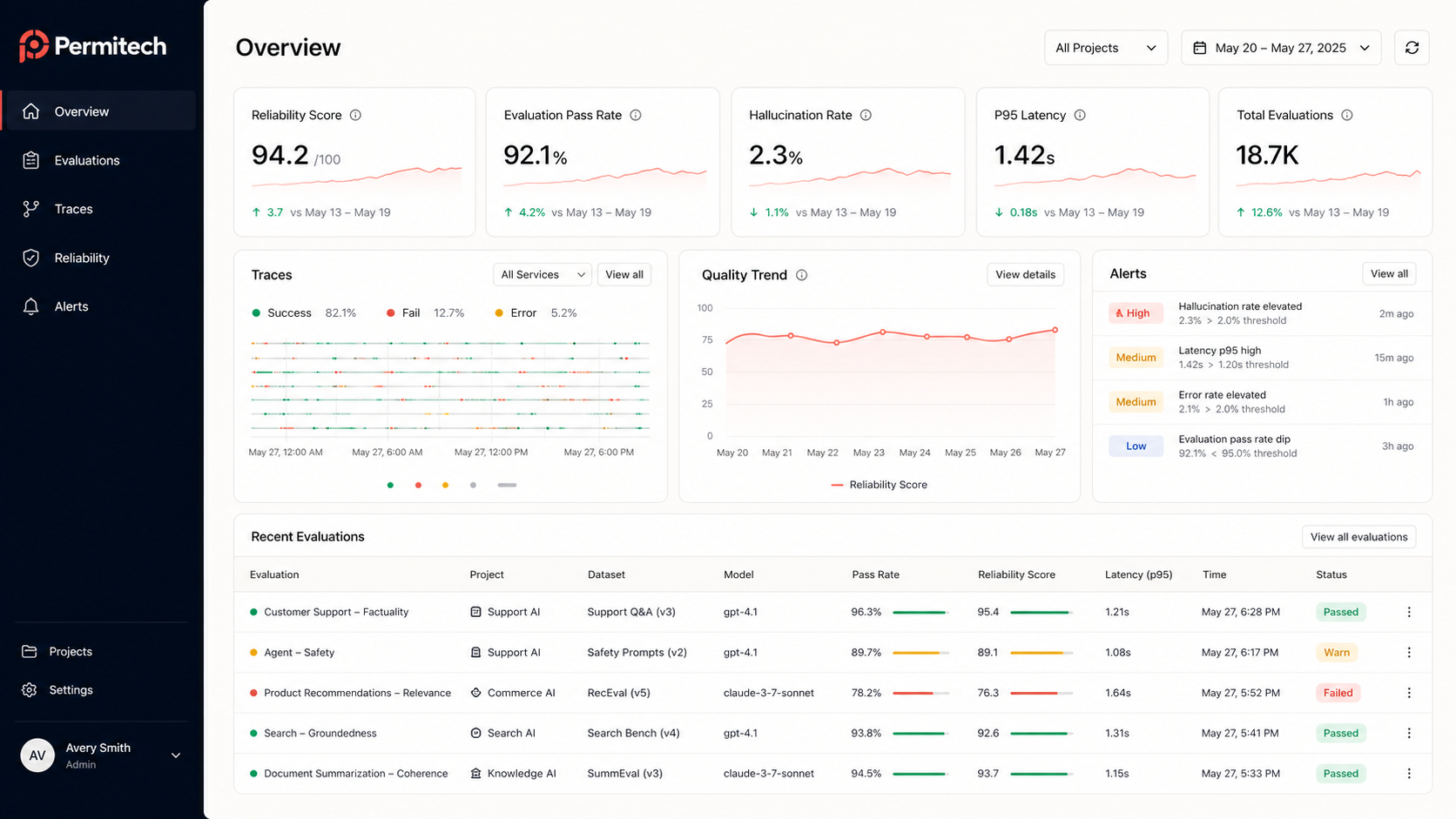

Overview
This guide explains how to add logging and evaluations with Permitech to an existing CrewAI application. In this guide you will:- Set up a project with Permitech
- Load environment variables if necessary
- Add the Permitech event listener
- Run your crew
Before you start
To complete this how-to, you will need:- An agentic application built with CrewAI. This guide assumes you have a
run()function as your entry point.If you don’t have a CrewAI application, you can follow the Build your first Crew guide from the CrewAI documentation.
- A Permitech project configured, with relevant metrics configured
- Your Permitech API key
Install dependencies
To use Permitech, you need to install some package dependencies, and configure environment variables.1
Install Required Dependencies
Install the required dependencies for your app. Create a virtual environment using your preferred method, then install dependencies inside that environment using your preferred tool:Install
python-dotenv if you don’t already have this installed.2
Create a .env file if you don't have one already, and add the following values
This assumes you are using a free Permitech account. If you are using a custom deployment, then you will also need to add the URL of your Permitech Console:
.env
Load environment variables if necessary
Permitech needs values like the API key and project name set as environment variables. If you are not already loading a.env file, then you need to do so.
You can skip this step if you are already loading the
.env file.1
Import the dotenv package
Add the following code at the top of your
main.py file to import dotenv and load the .env file.This assumes you are following the same structure as the sample CrewAI applications. If you are not, add this to the top of the file that contains the entry point of your application.
Add the Permitech event listener
To enable logging with Permitech, you need to create an instance of theCrewAIEventListener.
1
Import the Permitech CrewAI handler package
Add the following code at the top of your
main.py file:This assumes you are following the same structure as the sample CrewAI applications. If you are not, add this to the top of the file that contains the entry point of your application.
2
Create the event listener
At the start of your When you create the listener instance, it is automatically registered with CrewAI.
run function, create the event listener:Run your crew
You are now ready to run your crew, and see the logged traces in Permitech.1
Run your crew
Run your crew with the CrewAI CLI:
2
View the traces in Permitech
Once your crew has finished, the traces will be flushed an appear in Permitech.